How you connect decides what the assistant can see, so pick the credential before the client. See Authentication for what the two mean in practice.
Your assistant
OAuth, scoped to you
API key, scoped to the workspace
Claude, ChatGPT
Yes
Not supported
Claude Code, Codex, Cursor, Gemini CLI, VS Code, Windsurf
Yes
Yes
Antigravity
Not documented
Yes
Claude and ChatGPT only ever act as you. The editor and terminal clients support both, and the difference is one line of config: leave the credential out and the client signs you in over OAuth, supply one and the client reaches the whole workspace.
Nothing to create in NeetoForm beforehand. You give the client the server URL, and approve the connection in the browser.
Claude
ChatGPT
Claude Code
Cursor
Gemini CLI
Codex
VS Code
Windsurf
NeetoForm is not in Anthropic’s connector directory, so Browse connectors will not find it. Add it as a custom connector instead. One connector list backs claude.ai, the Claude desktop app, Claude mobile, and Cowork, so what you add in one shows up in the others.
Add custom connector is the second item under the Add button.
Name it NeetoForm and paste the server URL:
https://connect.neetoform.com/mcp/messages
Leave Advanced settings alone. The OAuth client ID and secret there are for servers that cannot register clients on their own, and NeetoForm does that automatically.
Custom MCP servers are added through developer mode.
Open Settings → Security and login and turn on Developer mode. The Plugins settings section links straight to it.
Go to Plugins, click Browse plugins, then the plus button.
In New Plugin, enter a name, set Connection to Server URL, and paste:
https://connect.neetoform.com/mcp/messages
Leave Authentication on OAuth. ChatGPT reads NeetoForm’s OAuth settings from the URL, so Advanced OAuth settings needs nothing from you.
Tick I understand and want to continue, then click Create and approve the NeetoForm sign in.
OpenAI documents the current steps in Building MCP servers for plugins and API integrations. They renamed the app directory to the plugin directory in July 2026, so older walkthroughs may say “apps” or “connectors” where the UI now says “plugins”.
Add the server without a header. The missing credential is what makes Claude Code sign you in rather than send a key.
claude mcp add --transport http neetoform https://connect.neetoform.com/mcp/messages
Run claude mcp list and the server reads Needs authentication. Start Claude Code, run /mcp, pick neetoform, and complete the sign in in the browser.
Add the server to ~/.cursor/mcp.json, or to .cursor/mcp.json for a single project, with no headers block:
Restart Cursor, then approve the NeetoForm sign in when it prompts.
Add the server to ~/.gemini/settings.json, or to .gemini/settings.json for a single project, with no headers block. Streamable HTTP servers go under httpUrl, not url, which Gemini CLI reserves for SSE:
Gemini CLI starts the sign in when the server answers with a 401, and registers itself automatically.
Codex uses TOML rather than JSON. Add the server to ~/.codex/config.toml, or to .codex/config.toml for a single project, with no credential fields. OAuth is what Codex falls back to when none are given:
This requires VS Code 1.99 or later with GitHub Copilot in Agent mode. Approve the NeetoForm sign in when it prompts.Microsoft documents the current steps in Use MCP servers in VS Code.
Add the server to ~/.codeium/windsurf/mcp_config.json with no headers block. Windsurf uses serverUrl rather than url:
Whichever client you started from, NeetoForm runs the same steps.
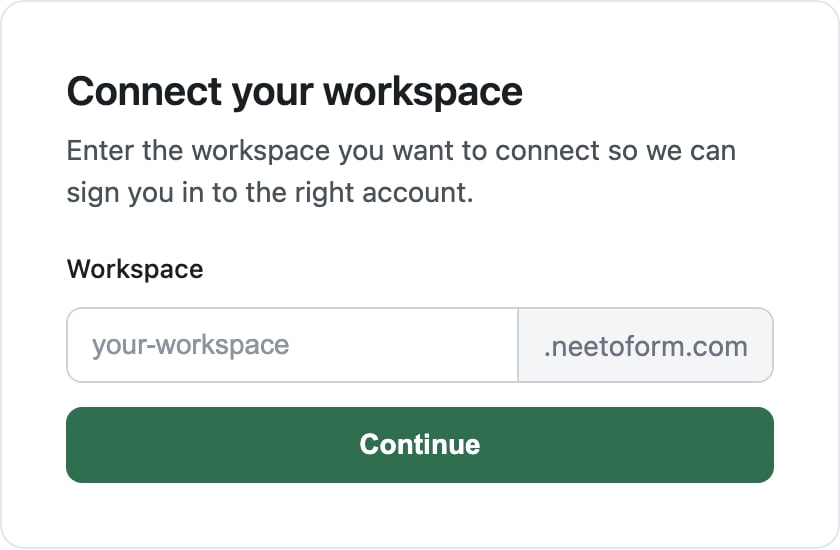
1
Connect your workspace
Enter the subdomain of the workspace you want the assistant to reach. For acme.neetoform.com, enter acme. See Workspace subdomain.
The first screen of the NeetoForm OAuth flow.
2
Sign in
Sign in to that workspace if you are not signed in already.
3
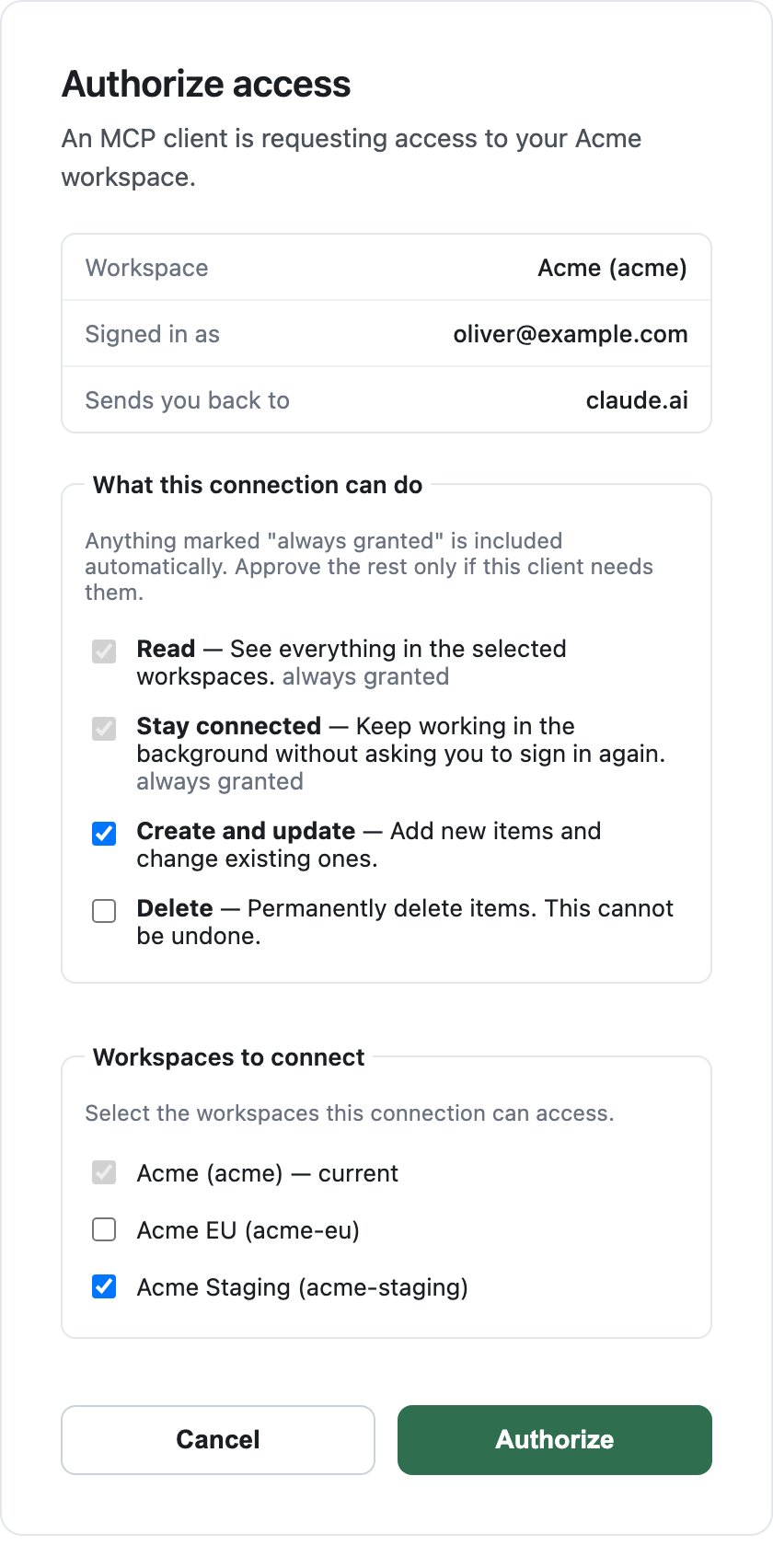
Choose what the connection can do
Authorize access names the workspace, the email you signed in as, and the host the client sends you back to. Under What this connection can do, Read and Stay connected are always granted; tick Create and update and Delete only if the assistant needs them.Workspaces to connect lists every workspace your email belongs to, with the one you just signed in to ticked and not untickable. This section only appears when your email belongs to more than one workspace.
Choosing the permissions and the workspaces the connection can reach.
4
Authorize
Click Authorize. The assistant is granted access as you, with the scopes you ticked, to each workspace you ticked.
There is no API key to create for this route, and nothing to paste back into the assistant.Once connected, name the workspace in a prompt when you want a specific one. To add a workspace, or to grant a permission you left unticked, run the sign in again and tick it.
The same clients, configured with a key instead. Every tool call then reaches the whole workspace rather than only what you can see, which is what you want for automation and not what you want on a shared machine.
Claude Code
Cursor
Gemini CLI
Codex
VS Code
Windsurf
Antigravity
Add the server to ~/.claude.json under mcpServers:
Export NEETOFORM_API_KEY in the environment Codex runs in.
Create .vscode/mcp.json in your workspace. VS Code nests servers under servers, not mcpServers, and an inputs entry is what keeps the key out of the file:
This requires VS Code 1.99 or later with GitHub Copilot in Agent mode. Written this way, VS Code asks for the key the first time the server is used and stores it itself.
Unlike the other clients, this config lives inside your project rather than your home directory, so a pasted key can end up in a commit. The ${input:...} placeholder above is what avoids that. Paste the key straight into headers instead and VS Code reads it from the file without ever prompting, so add .vscode/mcp.json to .gitignore before you do.
Add the server to ~/.codeium/windsurf/mcp_config.json. Windsurf uses serverUrl rather than url:
Enable the server under Settings → Cascade → MCP Servers. Windsurf allows at most 100 tools across every connected server, so disable servers you are not using if NeetoForm’s tools do not appear.
Open Settings → Customizations → Open MCP Config, then add the server to mcp_config.json. Antigravity uses serverUrl rather than url:
Ask the assistant something only the server can answer, for example “List the active forms in my NeetoForm workspace.” If it answers with real forms, the connection works. Find more prompts in Examples, and if nothing comes back, see Troubleshooting.